

Static site export
The static export produces a self-contained ZIP archive — one HTML file per page, a compiled stylesheet, and all assets. You can host it on any static server.
The Publish button at the right of the topbar lists every host, with the ZIP download below them. The same download is also in the Project menu.
Export your site
Section titled “Export your site”- Click Publish at the right of the topbar.
- Choose Download site (ZIP).
A progress modal appears while Swebsy builds your pages and bundles all styles.
- A ZIP file downloads when the export completes.
Optimize the ZIP
Section titled “Optimize the ZIP”The ZIP holds readable, formatted code and your images exactly as uploaded by default. For smaller files, turn on Settings → Performance & Security → Optimize Downloaded ZIP. It strips whitespace and comments from the HTML, CSS and JavaScript and compresses images with your image preset, which makes the files harder to edit. The setting is saved with the site, and deploys are always optimized.
Preview the code first
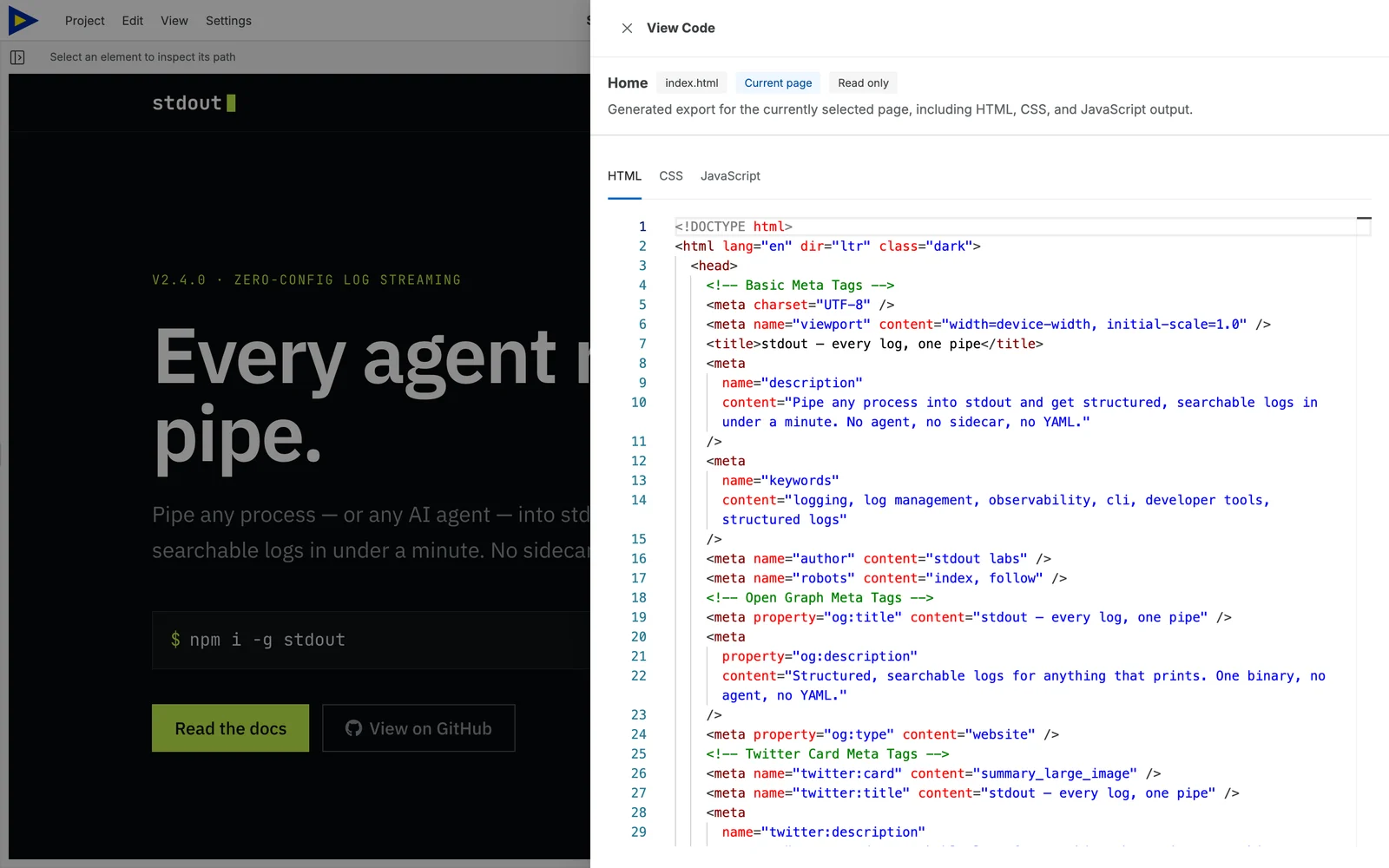
Section titled “Preview the code first”To read the output without downloading anything, open View → View Code
(⌘⇧C). It shows the generated HTML, CSS and JavaScript for the selected page.
What’s in the ZIP
Section titled “What’s in the ZIP”├── index.html # homepage├── about.html # one file per page├── blog/│ └── first-post.html # a page whose file name has a folder├── 404.html # your 404 page, or a default one├── README.md # what this folder is and how to edit it├── AGENTS.md # tells coding agents to edit in Swebsy├── css/│ └── styles.<hash>.css # every style, in one file├── js/│ └── swebsy-components.<hash>.js # only when a page needs it├── assets/ # uploaded images├── fonts/ # self-hosted fonts├── sitemap.xml # if enabled in Settings → SEO & AI Search├── robots.txt└── llms.txt # if enabled in Settings → SEO & AI SearchEach page is a <page>.html file. A page whose file name includes a folder,
such as blog/first-post, goes in that folder. The <hash> in the
CSS and JS file names changes whenever their contents change, so browsers never
serve a stale copy — which also means those file names are different in every
export.
Editing the exported code
Section titled “Editing the exported code”We don’t recommend editing these files by hand, and every HTML, CSS, and JS file in the ZIP opens with a comment saying so.
The export is a one-way build output. Swebsy edits its own project file, not the exported folder, and Import does not read this ZIP back — so changes made in these files can never return to the editor. The next export overwrites the folder completely. File and style names are generated, so hand edits get lost.
Two things follow from that:
- To change the design, change it in Swebsy and export again.
- To keep an editable copy, use Project → Export Project. That
.swebsybackup is the editable artifact — this ZIP is not. See Project backups.
A README.md in the ZIP root repeats this alongside a description of each
folder.
On a paid plan the comment shrinks to a single neutral line, and neither it nor
the README.md links back to Swebsy — the same way
badge removal works.
Optimize images
Section titled “Optimize images”By default your images are exported exactly as you uploaded them. On a photo-heavy site that is usually 90%+ of the download.
Pick a preset under Settings → Performance & Security → Images to re-encode them:
- Balanced — WebP at quality 80, resized to 2560px on the longest edge. Supported by around 96% of browsers.
- Smallest — AVIF at quality 55, resized to 2048px. Smaller again, but roughly 5% of visitors use a browser that cannot display AVIF.
- Custom — pick the format, quality, and maximum dimension yourself.
The preset applies to both deploy integrations, and to the ZIP when Optimize Downloaded ZIP is on. The deploy review modal and the export toast report the real before/after bytes.
Only PNG and JPEG images are re-encoded. SVGs, GIFs, and anything already in a compressed format pass through untouched, and an image is never replaced by a larger version of itself.
By default nothing is done to your originals — they stay in the project exactly as uploaded, so you can change the preset and export again at any time.
To stop re-encoding the same photos on every export, turn on Replace originals with compressed images, in the same settings or in the deploy review modal. Each image is then compressed once, on its next export or deploy, and the compressed copy replaces the original in your asset gallery. This can’t be undone, and a later preset change can’t bring back detail that was already removed.
If one particular image looks wrong after compression, open it in the asset gallery and turn on Keep original quality.
Two things worth knowing:
- Re-encoding drops EXIF metadata. That also strips GPS coordinates from photos taken on a phone, which is usually what you want on a public site.
- Images are converted to sRGB. A Display-P3 or Adobe RGB photo loses its wide gamut.
Host the ZIP
Section titled “Host the ZIP”Unzip and upload the contents to any static host:
- Netlify drop: drag the unzipped folder to app.netlify.com
- Cloudflare Pages: upload the exported site through Cloudflare’s dashboard or CI
- GitHub Pages: use the GitHub Pages deploy integration instead
- Any server:
rsyncor FTP the folder contents to your web root
Export hangs on large sites — building styles for a large site can take 10–30 seconds. Wait for the progress modal to close before navigating away.
Images missing in the ZIP — only assets that were uploaded via the Swebsy asset manager are bundled. External image URLs (hotlinked) are kept as-is.
Styles look different from the editor — the editor renders styles live; the export bundles them into a static file. If you see differences, try exporting again after saving all changes.