

Project backups
A project backup is a file that captures everything in your project — pages, blocks, styles, and settings — so you can restore it later or open it on a different computer.
For the full project lifecycle — create, rename, copy, delete, back up, restore, and choose between ZIP export and project backup — see Project management.
Export a backup
Section titled “Export a backup”- Click the Project menu in the topbar.
- Select Export Project.
Choose where to save it (Chrome and Edge ask; other browsers save to your downloads folder).
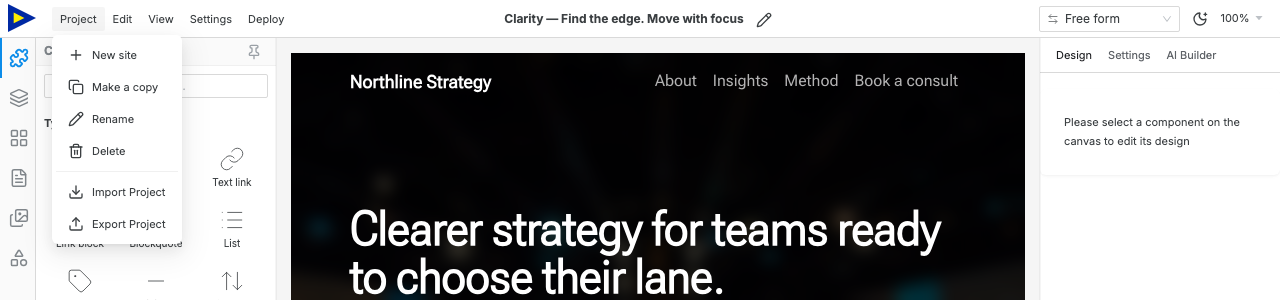
Restore a backup
Section titled “Restore a backup”- Click the Project menu in the topbar.
- Select Import Project.
Choose the
.swebsyfile you previously exported. Older.jsonbackups still import too.- Confirm the import — this replaces the current project.
What’s included (and excluded)
Section titled “What’s included (and excluded)”| Included | Excluded |
|---|---|
| All pages and blocks | AI chat history |
| Settings (SEO, fonts, analytics, theme, …) | Your Anthropic API key |
| Uploaded files (images, fonts, audio, video) | Unsplash API key |
| Deployment config (adapter, repo name) | Cloudflare / GitHub tokens |
Secrets are always stripped from backups for safety.
Backup file is very large — every uploaded file is included as it is, so a site with video or audio makes a backup about as big as those files.
Import says “This is a published-site ZIP” — that’s the website from Download site (ZIP), which can’t be imported. Choose the .swebsy file from Export Project instead.
Import says “This file isn’t a Swebsy project” — choose the .swebsy (or older .json) file from Export Project.
Import says a file “in this backup is damaged” — the backup was changed or cut short after it was saved (an interrupted copy or download). Nothing was imported and your current site is unchanged. Use another copy of the backup.